Guides · AI workflows · Updated 22 Jul 2026
Claude Cowork “Record a Skill”: teach the AI your workflow by showing it
Anthropic shipped a feature that removes the hardest part of automation — writing the instructions. You hit record, do the task the way you always do it, talk through your decisions, and Claude Cowork turns the demonstration into a Skill it can run again. Here is how it actually works, eight workflows worth recording, and what must stay off your screen.
In short
Record a skill lives in the + menu of Claude Cowork in the desktop app. It captures your screen, clicks, typing and voice while you perform a task once. Claude then writes that demonstration up as a reusable Skill — the same Skill format you would otherwise author by hand — and saves it to your library so you can trigger it later with a slash command or a plain request.
It is available on Pro, Max and Team plans, rolling out in stages, and it is desktop-only: there is no equivalent in the web or mobile apps. Anthropic has not yet published retention documentation specific to these recordings, so treat the screen you record as data you are handing over.
01What changed
A Claude Skill is a folder of instructions — a SKILL.md file plus any scripts and reference files — that Claude loads only when the task matches. Skills are why Claude can reliably produce a document in your house format instead of improvising one each time.
The problem was never the format. It was the writing. To author a Skill you had to convert years of muscle memory into explicit prose: every step, every exception, every unwritten rule about which button you press when the invoice has no PO number. Most people who have that knowledge are not process documentation writers, and that gap is exactly where automation projects died.
Record a skill inverts the workflow. You demonstrate; Claude documents. The person with the knowledge no longer has to think like a process designer — they just have to narrate while they work.
- Demonstration replaces documentation — no Markdown, no scripts, no prompt engineering.
- Voice narration is the important half: the screen shows what you clicked, your voice explains why.
- The output is an editable Skill, not a macro. It is instructions Claude reasons from, not a click-for-click replay.
- Best fit: high-frequency, low-variance tasks with a stable interface. Worst fit: judgement calls and one-offs.
02Where to find it
Open the Claude desktop app, switch the composer to Cowork, then click the + button to the left of the mode toggle. Record a skill sits directly under Add files or photos.
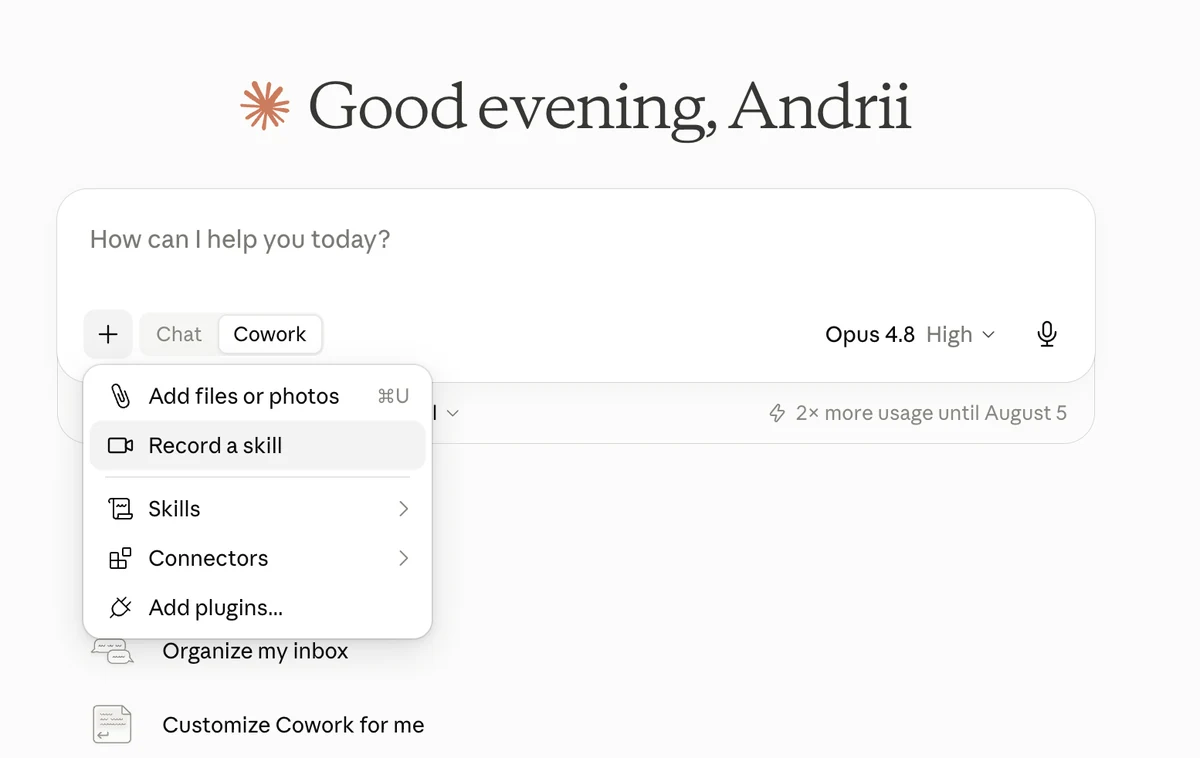
Not seeing it? Availability is phased rather than flipped on for everyone at once, and it needs a current desktop build. If you are on Pro, Max or Team and the item is missing, update the desktop app and check again in a day or two — it is not available in the browser or on mobile at all.
03How a recording session runs
Five phases, from the moment you decide what to teach to the moment Claude runs it for you.
- −02:00
Clear the stage before you press record
Close Slack, email previews, password managers and anything with a client name in it. Open the apps and files the task actually needs, and put them in the state they would be in at the real start of the task. A recording that begins mid-task teaches Claude a process with no beginning.
- 00:00
Start recording and grant permissions
Choosing Record a skill opens a confirmation dialog explaining what gets captured. On first use macOS will also ask for screen recording and microphone permission — grant both, then press Start recording.
- 00:30
Do the task — and say the quiet parts out loud
Work at normal speed. The screen already shows your clicks and keystrokes; what it cannot show is intent. Say what you are looking for, why you picked this option over that one, what makes a result acceptable, and what you would do differently if a field were empty or a number looked wrong.
Avoid dead air and detours. If you have to wait on a long export, say so rather than switching to another tab — unrelated activity in the recording becomes noise Claude has to guess about.
- 08:00
Stop, and let Claude write it up
Ending the recording drops you back into Cowork, where Claude analyses the session and drafts the Skill: the fixed steps, the inputs that change each run, and the conditions that mean the task is done. Read the draft. This is the point where you correct a misread step or add the exception you forgot to mention — it is plain text, and editing it is far cheaper than re-recording.
- 10:00
Save it, then pilot it
Save the Skill and it joins your library alongside handwritten and built-in ones. Trigger it later with a slash command or by describing the task in plain language. Run it on a low-stakes example first and check the output yourself for the first several runs — a Skill is a confident junior colleague, not a tested script.
04What the recording actually captures
Anthropic is explicit about this in the dialog before you start, and it is worth reading rather than clicking past: your screen, your clicks, your typing and your voice are recorded and sent to Claude.
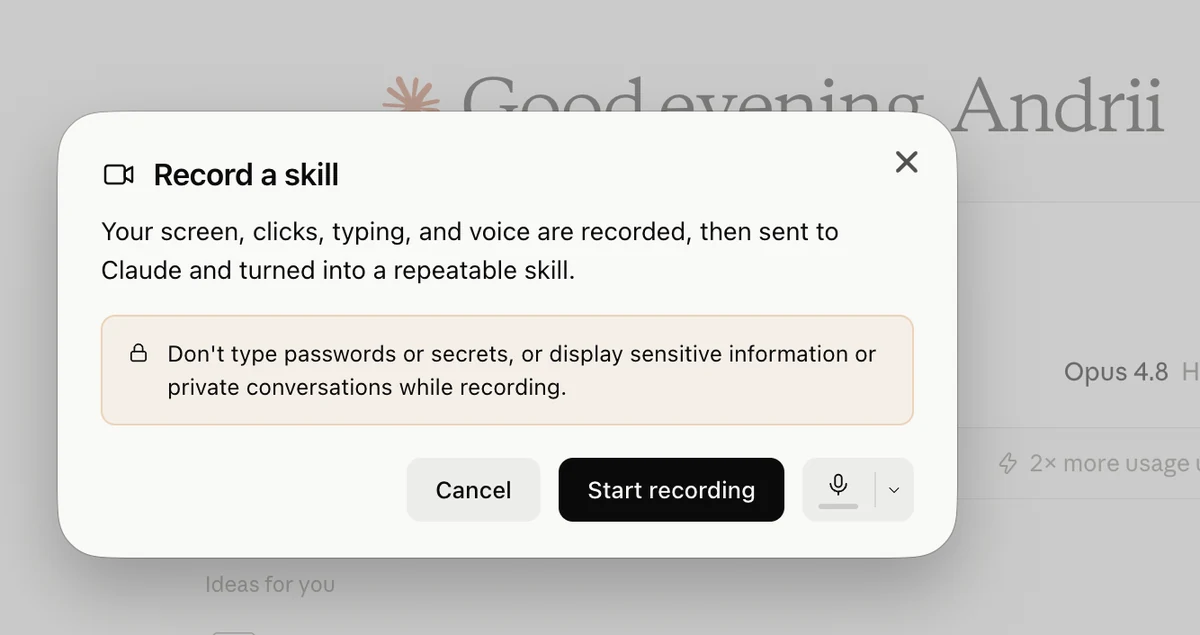
Safe to have on screen
- Synthetic or scrubbed sample data
- A dedicated test or sandbox account
- Public documents and internal templates
- Your own staging environment
- A browser profile with nothing else signed in
Keep it off screen
- Any login step — passwords, keys, API tokens, 2FA codes
- Customer names, emails, addresses, payment details
- Regulated records: health, legal, financial
- Private chats, DMs, unrelated notifications
- Anything you would not paste into a chat window
Open question
As of publication Anthropic has not shipped documentation specific to how these recordings are stored, how long they are kept, or which admin controls apply to them on Team plans. The general Cowork guidance still applies — sessions are processed on Anthropic’s infrastructure — but the recording-specific answers are not written down yet. If you work under a compliance regime, check your organisation’s current terms and treat a recording like an outbound data transfer until that documentation exists.
05Eight workflows worth recording
The pattern that pays off is the same everywhere: a task you repeat on a schedule, that follows the same shape each time, that takes long enough to be annoying, and where the interface does not change under you.
Turning a reproduction into a filed bug
The gap between “I found it” and “it is in Jira, correctly” is where most QA time leaks. Record yourself doing it properly once.
- What you record
- Reproducing the defect, capturing evidence, then filling the ticket: title convention, severity vs priority reasoning, environment block, the exact repro-steps format, which component and label you pick and why.
- What you get back
- A Skill that produces a house-standard bug report from a rough description — with your severity rubric applied rather than a generic one.
The weekly test status report
- What you record
- Pulling the run results, counting pass/fail/blocked, deciding which failures are genuine and which are known flakes, writing the risk paragraph, and formatting it the way your delivery manager expects.
- What you get back
- A Skill that assembles the report from the same sources every Friday. The judgement about flakes is the part your narration teaches — the rest is assembly.
Test-data seeding and environment reset
- What you record
- The reset ritual: which records to wipe, the order of the seeding steps, the sanity checks you run afterwards, and the specific thing you look at to know the environment is genuinely clean.
- What you get back
- The tribal knowledge that normally lives with one engineer, in a form the rest of the team can trigger.
The pre-release smoke checklist
- What you record
- The walk through of critical paths before sign-off — what you check, in what order, what “looks right” means for each screen, and which deviation blocks a release versus which one you note and move on.
- What you get back
- A repeatable checklist run with your acceptance thresholds baked in. Useful as documentation even before it is useful as automation.
Filing the expense report
Anthropic’s own example, and a good one: identical every month, never worth scripting, and quietly expensive in aggregate. Record the receipt handling, category rules and the approval routing once.
Triage and standard replies
Record how you sort a morning’s mail: what gets archived on sight, what gets a templated reply, what escalates, and the tone you use for each. Narrate the sorting rule, not just the click.
Building the monthly content calendar
Style guide, past posts, publishing cadence, the checks before something ships. Teams were already doing this with handwritten Skills; recording removes the writing step.
The handover no one ever writes
The strongest use is not automation at all. Record the process a leaver has run for five years and you get a written, editable description of it — one that survives their last day whether or not Claude ever runs it.
06Narrate like this
Two people can record the same clicks and get very different Skills. The difference is narration. A silent recording produces a Skill that copies your steps; a narrated one produces a Skill that understands your criteria. Use this as a mental script while you work.
OPEN
"I'm doing [task]. It runs [how often]. It's done when [condition]."
"The inputs that change each time are [X, Y]. Everything else is fixed."

DURING EACH STEP
"I'm opening [thing] because [reason]."
"I'm choosing [option] over [alternative] because [rule]."
"I'm checking [field] — it's correct when [criterion]."

AT EVERY BRANCH
"If [condition], I do this instead: [action]."
"If [field] is empty or looks wrong, I stop and [escalation]."

CLOSE
"That's the whole task. The output should be [description]."
"Common mistakes here: [failure 1], [failure 2]."
Say the exceptions even if they didn’t come up. The recording only contains the path you happened to take. Branches you never trigger have to arrive through your voice, or the Skill will confidently take the wrong turn the first time reality differs from your demo.
07Recorded vs handwritten Skills
Recording is not a replacement for the file format — it is a faster way to produce a first draft of it. The most durable Skills tend to be recorded first, then edited by hand.
| Record a skill | Handwritten SKILL.md | |
|---|---|---|
| Time to first draft | Length of the task, plus a short analysis wait | An hour and up, if you already know the format |
| Who can make one | Anyone who can do the task | Someone comfortable writing structured instructions |
| Captures tacit knowledge | Yes — that is the point | Only what the author remembers to write down |
| Precision | Inferred; needs review | Exactly what you wrote |
| Scripts and helper files | Not from the recording alone | Yes, any files you include |
| Version control | Edit the saved Skill after the fact | Native — it is a folder of text |
| Privacy surface | Everything visible on screen | Only what you type |
08Limits worth knowing before you trust it
Nothing here makes the feature a bad bet — but the failure modes are specific, and knowing them changes how you pilot a new Skill.
- Interfaces drift. A redesigned page, a moved button, a renamed field — the Skill was learned from a screen that no longer exists. Re-record after any significant tool update.
- Unseen branches are guesses. Anything the demo did not encounter is inferred, and inference can be wrong quietly rather than loudly.
- Silence is the dangerous failure. A Skill that stops with an error is fine. One that finishes with a plausible wrong result is not. Verify outputs for the first several runs.
- Desktop only, phased rollout. Pro, Max and Team, in the desktop app’s Cowork mode. No web, no mobile.
- Judgement does not record well. If the task’s value is in weighing incomparable things, the recording captures the outcome, not the weighing.
- Recording quality is a skill in itself. Your second recording will be markedly better than your first. Expect to redo the important ones.
09How it compares to Codex Record & Replay
OpenAI shipped a conceptually similar capability in Codex, and reporting has drawn the parallel repeatedly. The framing differs in a way that matters: “replay” suggests reproducing a sequence, while a Claude Skill is a set of instructions the model reasons from — closer to a written procedure than a recorded macro. In practice that means recorded Skills adapt better to inputs that differ from the demo, and are less exact about steps that must happen identically every time. Pick accordingly, and if a task genuinely requires byte-identical repetition, a real script is still the right tool.
10FAQ
Who can use Record a skill?
Claude Pro, Max and Team subscribers, in the Claude desktop app’s Cowork mode. It is not in the web app or on mobile, and the rollout has been phased rather than simultaneous — some eligible accounts got it days apart.
Does it cost extra?
No separate charge — it is part of the qualifying plans. Recording and analysis do consume your normal usage allowance, which several users hit on launch day.
Do I have to talk while recording?
Technically no, but a silent recording is a much weaker Skill. The screen shows the actions; your voice supplies the reasoning, the acceptance criteria and the exceptions. That reasoning is the difference between a Skill that copies you and one that can handle a case you did not demonstrate.
Can I use a screen recording I already have?
Anthropic’s framing suggests an existing walkthrough or training video can serve as the demonstration, so a well-narrated recording you already own is worth trying. The in-app capture flow is the documented path, so treat imports as something to verify rather than assume.
Can I edit the Skill afterwards?
Yes, and you should. What Claude produces is a Skill in the standard format — readable text you can correct, tighten, or extend with the exception you forgot to narrate. Reviewing the draft before saving is the highest-value two minutes in the whole process.
How do I run a saved Skill later?
Trigger it explicitly with a slash command in the Cowork composer, or simply describe the task — Claude loads a matching Skill when the request fits it. Saved Skills sit alongside your handwritten and built-in ones under + → Skills.
What happens to the recording after the Skill is created?
Anthropic has not published retention or deletion details specific to skill recordings. Until it does, the safe assumption is that anything visible during the session was transmitted and may persist — so control what is on screen rather than relying on retention policy.
Is this useful for a QA team specifically?
Very. QA runs on repeatable procedures with unwritten acceptance criteria — bug intake, status reporting, environment resets, smoke passes. Those are exactly the tasks where the knowledge lives in someone’s head and the documentation is three years stale. Even used purely as a documentation tool, a recorded Skill is a better artifact than the checklist nobody updated.
11Sources
- OfficialAnthropic / @claudeai launch announcement, 21 July 2026 — feature description, entry point, plan availability
- OfficialIn-app Record a skill dialog — capture scope and the sensitive-information warning (screenshots above)
- OfficialAnthropic Agent Skills documentation and the anthropics/skills repository — Skill format and progressive disclosure
- ReportThe Decoder — capture of screen, clicks, typing and voice; Cowork placement (21 July 2026)
- ReportAlphaSignal, Android Headlines, CyberSecurity News — rollout, plan tiers, workflow description (21 July 2026)
- ReportHands-on write-ups covering the permissions prompt, the analysis step and saving the Skill (22 July 2026)
12Related
Last updated 22 July 2026 · AQAPro